When a project is created it automatically inherits the list of default work types and categories from the Settings & Defaults section of your account. But what happens when you add a new default? Existing projects will not automatically inherit default work types and categories created after the project.
The newly created work type or category will need to be added to each existing project by following these steps. You can either do this in bulk or at the project level. See below for both options.
To assign in bulk:
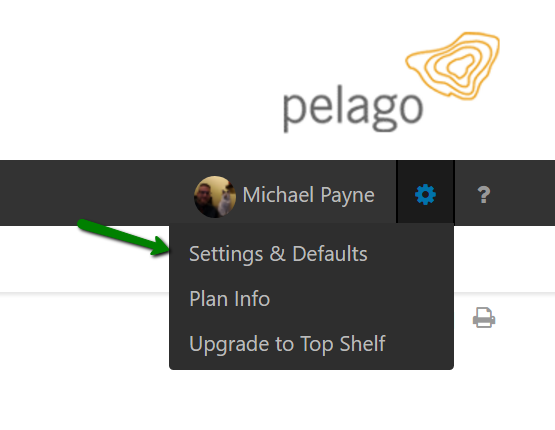
- Navigate to “Default work types” or “Default Categories” under Settings and Defaults:
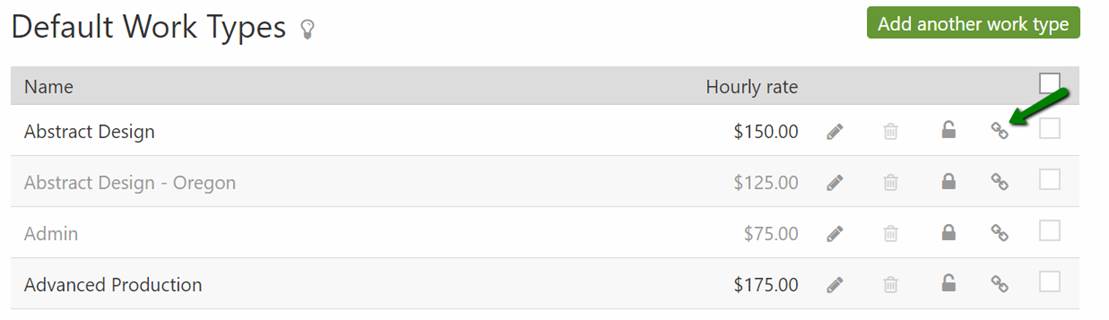
- Click on the “Add to an existing project” icon next to the work type or category:
- Check the box next to each existing project that should inherit this default and click Save:
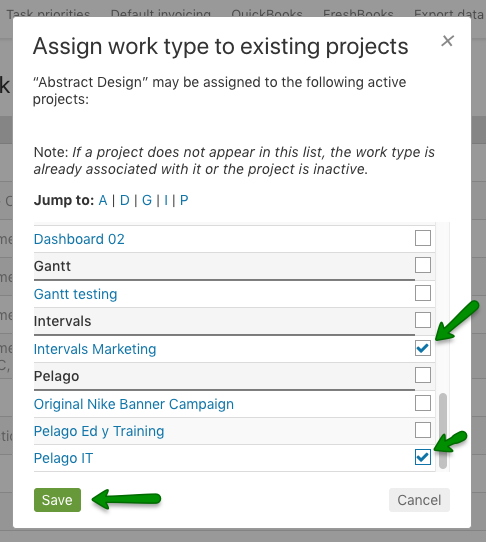
Once these steps are completed the default work type or category will appear on the project profile page and will become available in the select menus when creating or updating a task for that project.
To assign default work types or categories at the Project level:
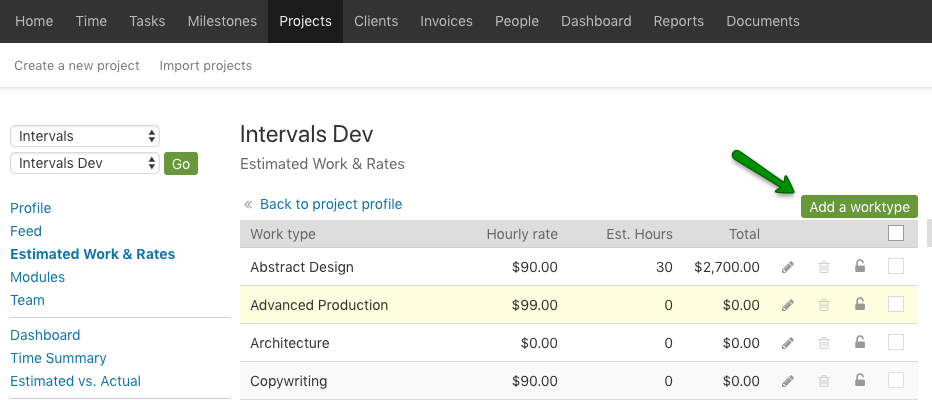
- From the project profile page, click on “Estimated Work & Rates” or “Categories” in the left side nav:
- Click on the “Add a worktype ” or “category”:
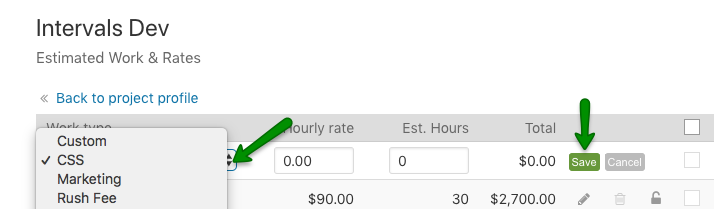
- Select the available work types/categories from the drop down & click Save: