
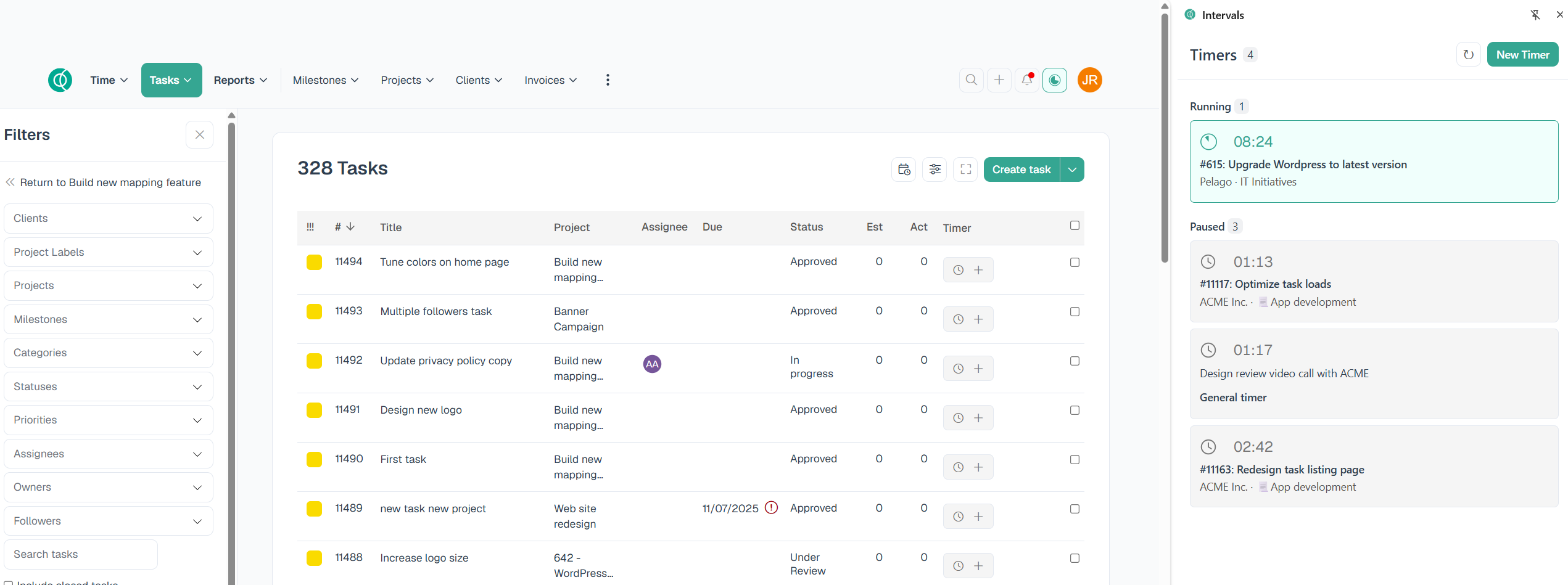
Intervals Timers opens your Intervals timers in Chrome’s side panel, so you can start, pause, and save time without leaving the page you are on. The extension uses the same sign-in as Intervals in Chrome. It does not ask for your password.
You need an Intervals account. Sign in to Intervals in a normal Chrome tab before you open the extension.
Install the extension
- Open Intervals Timers in Google Chrome.
- Click Add to Chrome.
- Click Add extension on the permission prompt.
Pin the icon
- Click the puzzle-piece icon on the Chrome toolbar.
- Find Intervals Timers and click the pin.
Open your timers
- Click the Intervals Timers icon.
- The side panel opens. If you are already signed in to Intervals, your timers appear there.
Timers in the side panel stay in sync with the timers in Intervals. You can change a timer’s project or task while it is still running.
Start, pause, and add a note
- Click New Timer. The timer starts immediately as a general timer, with no project or task attached.
- Click the pause button to pause it, and the start button to resume it.
- Type a note and click the save button. Press Enter to save the note as well.
Assign a timer to a project
- On the timer, click More options.
- Select Assign to project.
- Choose a project.
- Click Assign.
The timer shows the project name and is now a project timer.
Assign a timer to a task
- On the timer, click More options.
- Select Assign to task.
- Choose a project. That choice fills in the task list.
- Choose a task.
- Click Assign.
The timer shows the task number and title. Assigning a task also attaches that task’s project, so you do not need to assign the project first.
Move a timer to a different project or task
You can move a timer without pausing it.
Move a project timer to a different project
- On the project timer, click More options.
- Select Reassign to different project.
- Choose the new project.
- Click Reassign.
Move a task timer to a different task
- On the task timer, click More options.
- Select Reassign to different task.
- Choose the project, then the task.
- Click Reassign.
A project timer also has Assign to task if you want to attach it to a task in that project.
Remove a project or task from a timer
- On the timer, click More options.
- Choose the option that matches what you want to remove:
- Revert to project timer removes the task and keeps the project.
- Revert to general timer removes both the project and the task.
The timer keeps running.
Save the timer as a time entry
- On the timer, click the apply button.
- Complete Add time. The date, time, and description are filled in from the timer. A project or task already on the timer is filled in as well.
- Choose the client and project, task or category, and work type if they are not already set.
- Click Save.
Saving the time entry clears that timer.
Delete a timer
- On the timer, click More options.
- Select Delete.
- Confirm that you want to clear the timer.
Deleting a timer does not create a time entry, and it cannot be undone.
For how timers work inside Intervals, see How do I use the timers? and Attaching Timers to Tasks and Projects.
If the side panel asks you to sign in
- Sign in to Intervals in a normal Chrome tab. Leave that tab open.
- Return to the side panel and click I’m signed in — refresh.
You can also click Open Intervals login. That opens your last Intervals account, or the Intervals login page if the extension does not yet know which account you use.
Getting help
Contact support@myintervals.com and include:
- The extension version, from
chrome://extensions - The web address of your Intervals account
- What you were doing when the problem happened